# Websites and the install script
Every website you use with TraceFlow or ZuvoChat is added once, on the Zocton Dashboard. Each
website gets **one install script**. It brings in TraceFlow tracking, the ZuvoChat chat widget or
both, depending on what you switch on — you never change the website when you switch one on or off.
This page is for the workspace owner and admins. Members and viewers do not see **Websites**.
## Where to find it
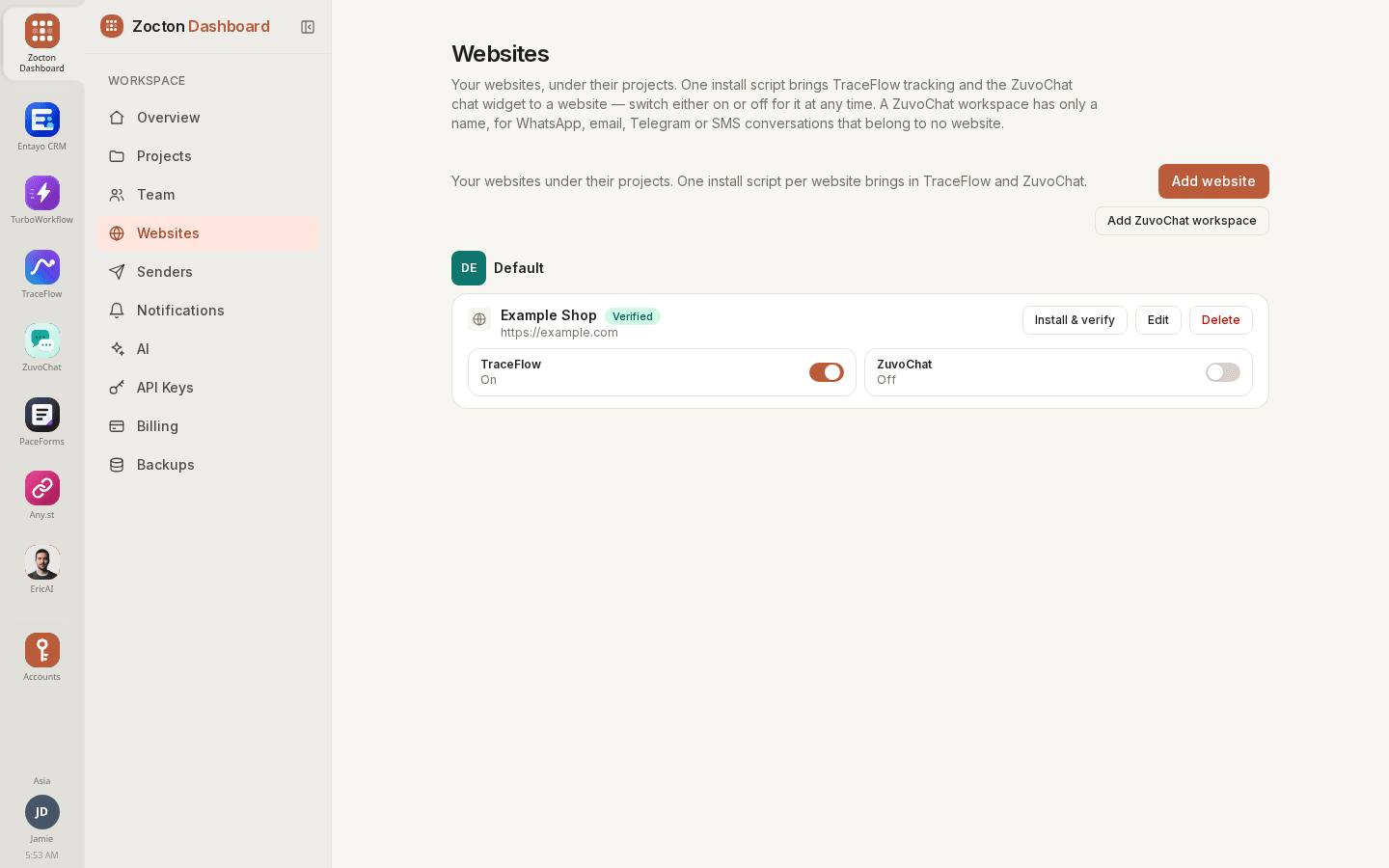
Zocton Dashboard → **Websites**. A project's own page (**Projects** → the project) also lists the
websites in that project.
## Before you start
- You need at least one project. A website always lives in a project — if you have none, the page
says "A website is made under a project. Create a project first." See
[Projects and team](https://www.zocton.com/docs/shared/projects-and-team).
- You need to be able to edit the website's HTML, or ask whoever can.
## Add a website
1. Click **Add website**.
2. Pick the **Project**.
3. Type the **Website URL** — the address visitors use. `www.example.com` and `example.com` are
different websites.
4. Give it a **Website name**.
5. Under **Use with**, tick **TraceFlow**, **ZuvoChat** or both. Both are ticked at first.
6. If you tick ZuvoChat, you can open **More — ZuvoChat's privacy and terms links** and add your
privacy policy and terms addresses (both optional).
7. Click **Add website**. When it is done, the install script is shown with a **Copy** button.
If one app could not switch the website on, the button turns into **Try TraceFlow again** or
**Try ZuvoChat again** — click it to try that app once more.
## Put the install script on your website
Click **Install & verify** on the website's row to see its script. It looks like this, with your
own data centre and website id:
```html
```
Put it **once on every page** of the website, inside the ``. `` is `apac`, `eu` or
`na` — the data centre your workspace lives in. Copy the script from the Dashboard rather than
typing it.
Older TraceFlow and ZuvoChat snippets keep working, but new websites only need this one.
### With a cookie banner
If your website asks visitors for consent, the install script can follow that choice. Before the
script runs, publish what the visitor allowed, and send an event whenever it changes:
```html
```
- **TraceFlow** counts as `analytics`. It loads only once `granted("analytics")` answers `true`, and
starts the moment your banner sends `zocton:consent` after the visitor accepts.
- **ZuvoChat** is the chat your visitors use, so it always loads.
- If `granted` is missing or fails, TraceFlow stays off. A website that does not publish
`window.zoctonConsent` loads both, as before.
- Turning analytics off cannot stop a script that already ran on the page: clear TraceFlow's
browser storage (keys starting `td_`) and reload the page.
## Verify the website
TraceFlow only starts tracking once the website is verified — proof that it is yours. ZuvoChat does
not need it. Verifying is done through TraceFlow, so switch TraceFlow on for the website first.
Click **Install & verify** and use either way under **Verify this website**:
**With the install script**
1. Put the install script on the home page (or on the page you name in the optional field).
2. Click **Check the website**.
The script must be in the page's HTML itself. A copy added by a tag manager, or by a single-page app
that builds its `` in the browser, cannot be seen.
**With an emailed code**
1. Pick an address at your website's domain — admin@, administrator@, webmaster@, hostmaster@ or
postmaster@.
2. Click **Send code**.
3. Type the six-digit code from the email and click **Verify**. The code only works for a short time;
**Send another code** sends a fresh one.
When it is done, the panel says when and how the website was verified, and the row shows
**Verified**.
## Switch TraceFlow or ZuvoChat on or off
Each website row has a switch for each app. The app's tile says **Off**, **On** or
**On — needs verifying** (TraceFlow is on, but the website is not verified yet).
- **Switch TraceFlow on** — it happens at once, and tracking starts once the script is on the
website and the website is verified.
- **Switch ZuvoChat on** — a dialog asks for the optional privacy and terms links, then
**Switch on ZuvoChat**.
- **Switch either off** — confirm with **Switch off TraceFlow** or **Switch off ZuvoChat**. The
app's data is kept, and switching it back on restores it.
A change reaches your live pages within about a minute; nothing on the website needs changing.
## The daily check
Once a day, the Dashboard looks at each verified website's home page and checks that the ZuvoChat
part of the script is there. The result is shown under the website's address, with the date of the
check:
- **ZuvoChat script found and live**
- **ZuvoChat script not found on the website's page**
- **Could not read the website to check the script**
- **ZuvoChat is switched off**
The check only reads the page. It does not email you and changes nothing. It checks the ZuvoChat
side only — a TraceFlow-only website shows "ZuvoChat is switched off". There is no button to run
the check by hand.
## Options
| On the row | What it does |
|---|---|
| **Install & verify** | Shows the install script, the verify panel and the website's name on the Dashboard. |
| **Edit** | Change the **Website URL** or **Website name**. A new domain has to be verified again. |
| **Delete** | Removes the website. Its install script loads nothing any more. |
| **Open in TraceFlow** / **Open in ZuvoChat** | Opens the website in that app. |
## A ZuvoChat workspace without a website
For WhatsApp, email, Telegram or SMS conversations that are not tied to a website, click
**Add ZuvoChat workspace**, pick the project and give it a **Workspace name**. It has no install
script. **Remove** takes it away; its conversations and contacts are kept.
## Good to know
- **Deleting keeps the data.** TraceFlow and ZuvoChat keep what they hold for a deleted website.
Adding the same address to the same project again brings it back.
- **One website per address in a project.** Adding the same address twice to one project is refused.
- **Your last ZuvoChat website** cannot be switched off for ZuvoChat.
- **Verifying by email needs a mailbox at the domain.** If you cannot receive mail at one of the
addresses above, verify with the install script.
- A website whose project is no longer live cannot be switched on.
## Related
- [Projects and team](https://www.zocton.com/docs/shared/projects-and-team)
- [API keys](https://www.zocton.com/docs/shared/api-keys)
- [TraceFlow](https://www.zocton.com/docs/modules/traceflow) and [ZuvoChat](https://www.zocton.com/docs/modules/zuvochat)
- TraceFlow's own guide: [gettraceflow.com/docs](https://gettraceflow.com/docs) · ZuvoChat's:
[zuvochat.com/docs](https://www.zuvochat.com/docs)