API keys
A Zocton API key starts with zk_. It acts as you, but only in the apps and projects you
choose, only with the access you give it, and only in your own data centre. You make it once on the
Zocton Dashboard and use it in your own scripts, in n8n or in an AI app through
the Zocton MCP.
Which apps accept a key today
Be clear about this before you build anything:
| Where | Accepts a zk_ key? |
|---|---|
| Entayo CRM API — the Entayo CRM API reference | Yes |
| Zocton MCP — one server for every Zocton app | Yes |
| Any other Zocton app's own address (TurboWorkflow, TraceFlow, ZuvoChat, PaceForms, Any.st) | No — not yet |
The key screen already lists every app, because the Zocton MCP reaches TurboWorkflow, TraceFlow, ZuvoChat, PaceForms, Any.st and the Dashboard for you. A key with access to, say, TraceFlow works through the MCP's TraceFlow tools, not on TraceFlow's own web addresses.
Where to find it
Zocton Dashboard → API Keys. The same page has Connect an AI app at the top — see MCP links.
Before you start
- You need a Zocton account. Keys can only reach your own projects.
- Know which apps the key needs and whether it only reads or also changes things.
Make a key
- Click Create API key.
- Give it a Name, for example
n8n. - Under Projects, choose All projects (every project you have now and any you add later) or Choose projects and tick them.
- Under Access, set each app to No access, Read or Read & change. With several chosen projects you can tick Different access in each project.
- Under Ends, pick Never, In 30 days, In 90 days or In 1 year.
- Click Create key.
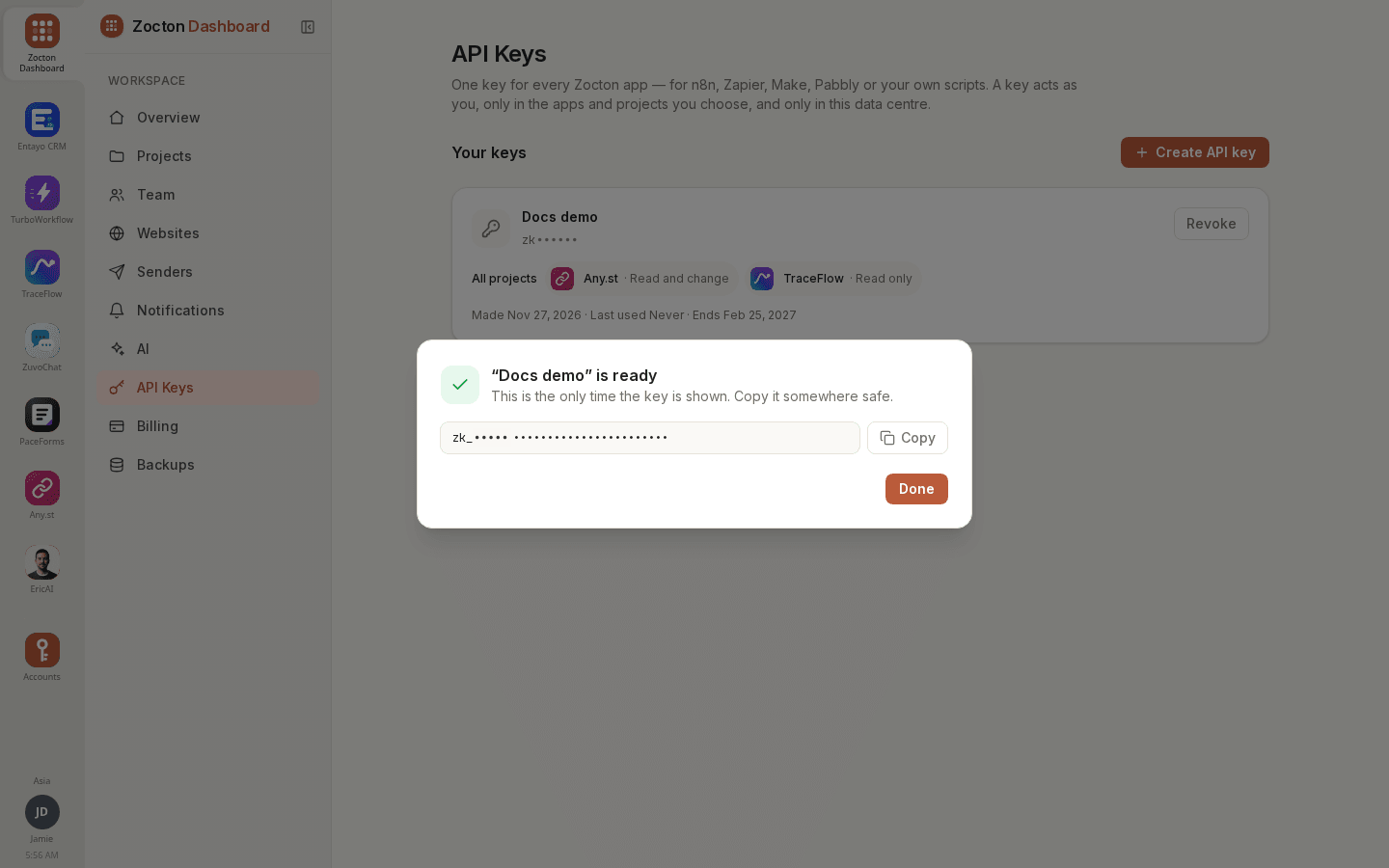
- Copy the key and keep it somewhere safe. This is the only time the key is shown. Click Done when you have it.
Use a key
Send it as a bearer token, to your own data centre (apac, eu or na):
Code
For the Entayo CRM API, see Authentication. For the MCP, see Zocton MCP.
Options
| Setting | Choices |
|---|---|
| Projects | All projects, or Choose projects |
| Access, per app | No access, Read, Read & change |
| Ends | Never, In 30 days, In 90 days, In 1 year |
Each key in Your keys shows its name, the start of the key, its projects and access (for example "Entayo CRM · Read only"), and "Made … · Last used … · Ends …".
Revoke a key
Click Revoke on the key and confirm. Every tool using it stops working at once. A revoked key cannot be brought back — make a new one.
Good to know
-
Not on the Free tier. Where plan limits are on, a key on the Free tier is refused with "your plan does not include this" — the API, the MCP and n8n alike. See Billing → Limits.
-
A key works in one data centre — the one it was made in.
-
For the Zocton MCP, choose All projects. Today a key limited to chosen projects connects to the MCP but gets no app tools.
-
Read only means read only. A tool that changes something is refused with a read key.
-
Keep keys secret. Anyone with the key can do what it allows, as you. If one leaks, revoke it.
-
There is a cap on how many keys you can have at once; revoke the ones you no longer use.